Animation
In this section, we’ll visualize the game process. It loads pre-trained model to see how it acts after training so if you want to use it, you have to download our folder of pre-trained model. Please follow these steps:
Download and extract our pre-trained models folder in current working directory. You can download directly here or you can use
gdownlibrary to download and unzip byunzipcommand.>>> import gdown >>> file_url = 'https://drive.google.com/uc?id=1SmrYhUC9PNyBR_yUJQJxJsBrNjSARZQD' >>> gdown.download(file_url, 'checkpoints.zip', quiet=False)
unzip checkpoints.zipWarning
Make sure you have
checkpointsfolder in current working directory, otherwise program can’t find it for loading.To run animation, run in a normal python file or interactive mode
>>> from rbgame.menu import RoboticBoardGameMenu
>>> from rbgame.utils import astar_construtor, dqn_constructor
>>> RoboticBoardGameMenu(astar=astar_construtor, dqn=dqn_constructor)
It will show you below screen:
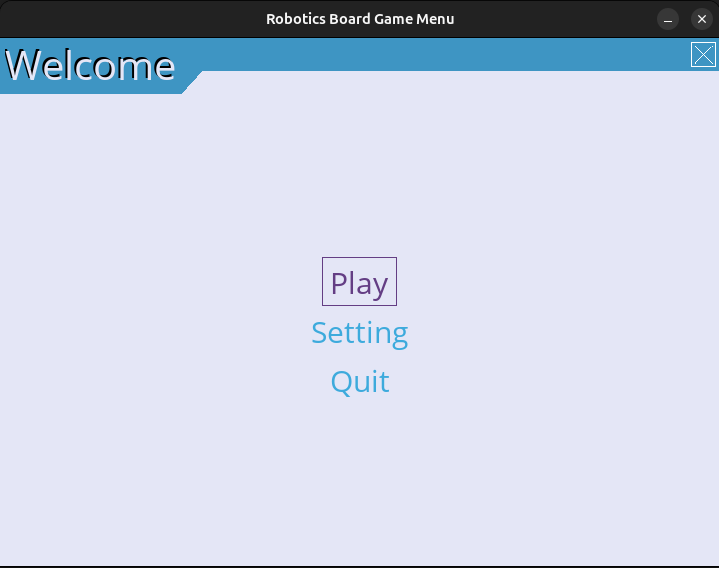
Introdution screen.
You can right away run with default configuration by clicking Play or click Setting to edit it:
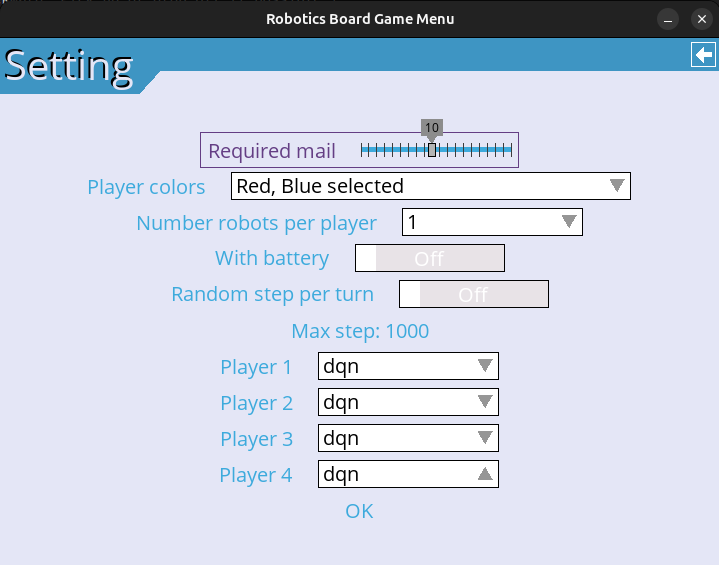
Setting screen.
All players is human by default. You can chose astar if you want to use agent using A* path finding algorithm or dqn to use DQN agent.
Click OK to back to main menu and now click Play to animate with new configuration:
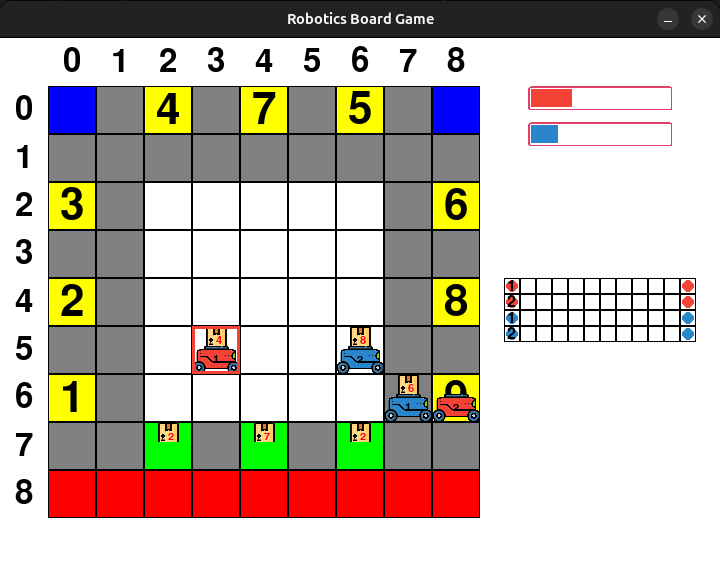
Game process screen. Bar progress in top-right corner shows how many mails player has collected. Grid in bottom-right corner shows batteries of the robots.
If you play by yourself, table following will show you how to:
Button |
Acton ID |
Action |
|---|---|---|
space |
0 |
Stand still. Charge if possible. |
↑ |
1 |
Make move foward. Pick up or drop off if possible. |
↓ |
2 |
Make move backward. Pick up or drop off if possible. |
← |
3 |
Make move to left. Pick up or drop off if possible. |
→ |
4 |
Make move to right. Pick up or drop off if possible. |